From order to pickup
This is how it works, step by step, from building your menu to the food being picked up and paid for at your counter.
1. Build your menu
Dishes, prices, photos and extras. Minimum quantities and lead times for cakes and catering. Done in fifteen minutes, from your phone if you like.
2. Share your link and start promoting it
Your page lives at www.takeawayer.com/r/your-restaurant. You do not make the material yourself: under Settings and Marketing you will find your QR code, four printed pieces, seven ready-made posts for social media carrying your own dishes, and the words already written for Google, Instagram, Facebook, email and SMS. A checklist shows the nine places the link belongs, and four of them tick themselves. The more places it shows, the more orders come in.
3. The guest opens your link
No app, no account. The menu comes in up to four languages and works as well on a phone as on a computer.
4. Picks dishes and a pickup time
Only free time slots are shown. You decide how many orders the kitchen can handle per quarter hour, so the rush evens itself out. A guest sitting in the restaurant chooses Eat here instead of a pickup time.
5. The order lands in the kitchen
A sound on the tablet or computer, and an email. The order shows the pickup time, the dishes, the extras and the guest's phone number.
6. Confirm with one tap
The guest gets the confirmation by email. Print the kitchen ticket with everything the kitchen needs.
7. Cook when it suits the kitchen
Orders sit sorted by pickup time. Mark one as ready and the guest can be notified if you want.
8. The guest picks up and pays you
Payment at the counter as usual. The money goes straight into your till, the same day, with no commission and nobody in between.
One order, two screens
The tablet in the kitchen. The phone in your guest's hand.
The guest orders and picks a pickup time on their phone. The kitchen sees the order straight away on the tablet, with the time, the dishes, the wishes and the allergies - and one button to confirm. No app to install, no account for the guest.
The kitchen: the order board on a tablet by the counter
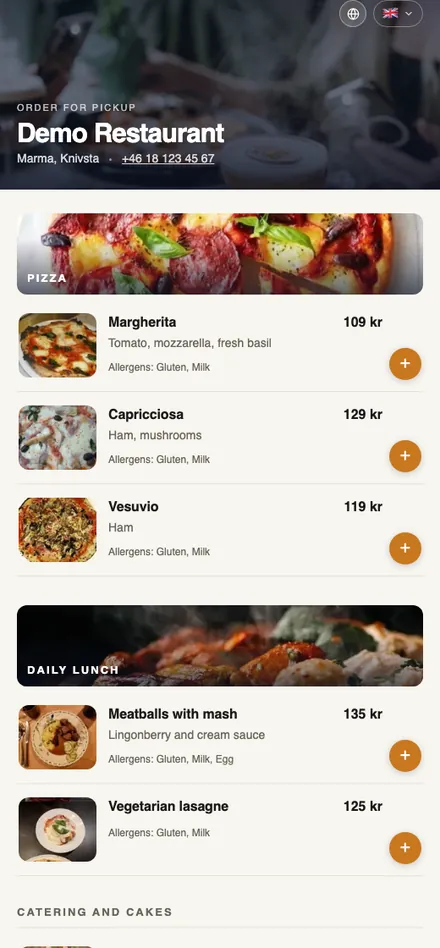
The guest: your menu on their phone
What equipment do you need?
Nothing special. The kitchen screen is a web page and runs on the tablet, computer or phone you already own. Kitchen tickets print on an ordinary printer, if you print at all.
If you want a dedicated screen in the kitchen, or a digital menu at the table, a simple tablet with a stand is enough. Two searches that take you right there:
Ready to take the first order?
Try it free for 30 days. No card details, no lock-in.
Create your ordering pageWant to see it from the guest's side? Open the demo menu.